Translating a few content entries in Hygraph is manageable, but dozens or hundreds take more effort. You need to maintain consistent terminology, preserve formatting, and make sure each translation saves to the correct locale.
With the Hygraph MCP connector, you can use Claude to translate content across your project without manually updating every entry. Claude can read your content and translation guidelines, create localized versions, and save them as drafts for review before publishing.
In this tutorial, we'll use Claude and the Hygraph MCP connector to translate a fictional help center from English to French. We'll configure localization, set up translation guidelines, test the workflow with a few articles, and then translate the remaining content in batches.
Prerequisites
Before you begin, you'll need:
A Hygraph project with existing content in one language. We'll use English.
Admin access to your project, since creating AI guidelines requires admin permissions by default.
Claude, on the web or desktop app, with access to connectors.
You won't need to write any code.
Our example project
For this tutorial, we'll use a fictional project management app (Tasklane help center). Our Hygraph project contains 24 published English articles across four categories: Getting started, Billing and plans, Integrations, and Troubleshooting. It also has three authors.
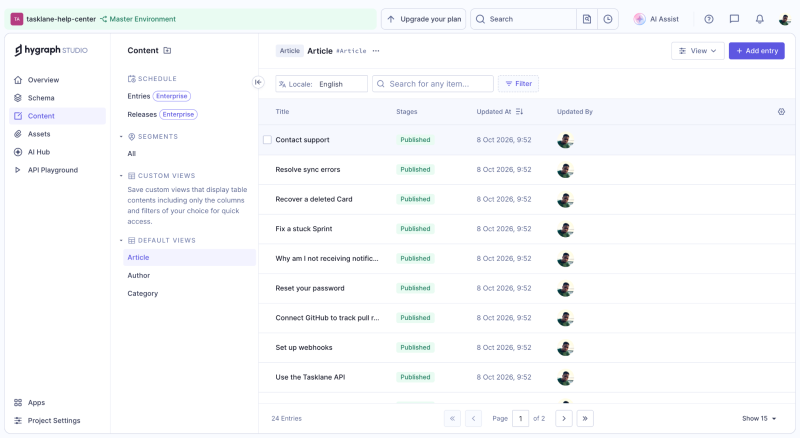
The articles contain numbered lists, bullet points, bold text, and inline code, which will help us check whether Claude preserves formatting during translation.
Hygraph organizes content into models, each containing fields. A localized field can store different values for each language, while a non-localized field shares the same value across languages.
If you already have a project with content, you can use your existing models and fields.
If you don't have a project yet
You can create one by following Hygraph's Getting started guide, or let Claude handle the initial setup once you've connected it in Step 1.
For example, ask Claude to create a project:
Create a blank Hygraph project called tasklane-help-center. List the available regions first and use the one closest to me.Then create the Article model with localized fields:
In tasklane-help-center, create a model called Article with these fields: title (single line text, required, localized, used as the title), slug (single line text, required, unique, not localized), summary (single line text, localized) and body (rich text, localized). Run it as a dry run first and show me the result before you apply it.
You'll still need to create the remaining models and add content before proceeding with the translation workflow.
Step 1: Connect Claude to Hygraph
The Hygraph MCP connector lets Claude access your project through your Hygraph account, so you don't need to generate an API token or set up a local MCP server.
To connect it:
In Claude, go to Settings > Connectors, find Hygraph MCP, and click Connect. You can also find it in the Claude connector directory.
Sign in to Hygraph and click Accept. If prompted to allow offline access, you can accept, although it isn't required for this tutorial.
Start a new chat, click + > Connectors, and enable Hygraph MCP.
Once connected, check that Claude can access your project and identify which fields are localized:
In the master environment of tasklane-help-center, list the models and their fields, and tell me which fields are localized.
Claude may ask for permission before using a tool. Choose Allow once to approve the request. Always allow skips subsequent permission prompts, so it's worth reviewing calls that can modify your project.
If a field you want to translate isn't localized, you can ask Claude to enable localization:
In tasklane-help-center, make the summary field of the Article model localized by setting isLocalized to true. Run it as a dry run first and show me the result before you apply it.
Hygraph doesn't allow you to localize a required field directly. You'll first need to make it optional, enable localization, and then make it required again if necessary. Claude can handle these changes, although restoring the required setting may need a migration value for existing entries without a value.
Since schema changes affect every entry of the model, test them on a copy of your project first. You can also configure localization manually in Studio using the Localize field checkbox under the field's Settings tab. See Hygraph's field configuration documentation.
If Claude can't find your project, open the connector's Configure screen and check that the Hygraph tools are enabled.
Step 2: Add the French locale
Hygraph stores translations as localized versions of the same entry, so adding French doesn't require duplicating your content.
You can add French in Studio under Project Settings > Locales, or ask Claude:
Add French (fr) as a locale in tasklane-help-center. Run it as a dry run first and show me the result before you apply it.
A dry run previews the change without applying it. Review the result before asking Claude to proceed.
Once applied, your project will have English and French locales, although the articles haven't been translated yet.
Step 3: Give Claude your translation rules
Claude can translate your content, but it won't automatically know your product's terminology or writing conventions. For example, it might translate "Board" as "conseil", switch between "tu" and "vous", or translate a product name that should remain unchanged.
Hygraph AI Guidelines let you define these rules once and reuse them across translations. We'll create three guidelines covering brand voice, audience, and terminology.
Claude can read existing guidelines through the connector, but you'll need to create them in Hygraph Studio.
Go to AI Hub > Configurations > Guidelines and click Add Guideline.
Brand voice
Choose Brand Voice & Tone, name it Tasklane voice, and add the following to the Document tab:
Tasklane sounds like a helpful colleague, not a manual. Use short sentences and active voice. Address the reader as "you". Say what to do first, then why. Avoid jargon unless the term is in the glossary. Stay friendly and calm, even in troubleshooting articles. Never blame the user.
On-brand: "Click Invite and add your teammate's email. They'll get a link right away."
Off-brand: "The invitation functionality may be utilized by the administrator to facilitate user onboarding."
When translating, keep the same warmth and directness. Use the informal register where the language has one: in French, address the reader as "tu", never "vous". Keep bold text, lists and code formatting exactly as in the source.
The French register matters here. By specifying "tu" rather than "vous", we can maintain a consistent tone across articles without repeating that instruction in every translation prompt.
Audience
Choose Audience & Context, name it Help Center readers, and add:
Readers are team leads and project managers using Tasklane at work. They are comfortable with software but are not developers, and they usually arrive with a specific problem and want the answer fast. Content is help center articles, so keep steps short and numbered.
Glossary
A glossary helps Claude use the same translations for product-specific terms across your content.
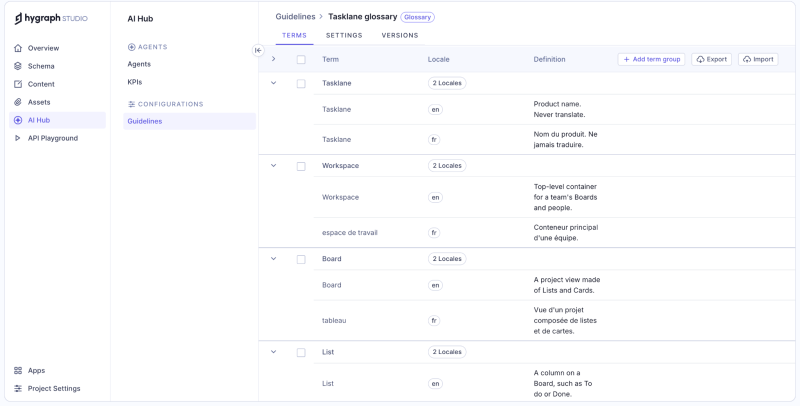
Choose Glossary, name it Tasklane glossary, and click Download CSV template. Fill in the termGroup, locale, term, and definition columns. For example:
termGroup,locale,term,definition
Tasklane,en,Tasklane,Product name. Never translate.
Tasklane,fr,Tasklane,Nom du produit. Ne jamais traduire.
Workspace,en,Workspace,Top-level container for a team's Boards and people.
Workspace,fr,espace de travail,Conteneur principal d'une équipe.
Board,en,Board,A project view made of Lists and Cards.
Board,fr,tableau,Vue d'un projet composée de listes et de cartes.
Sprint,en,Sprint,A fixed period when the team commits to a set of Cards.
Sprint,fr,sprint,Garder le terme anglais.
Stand-up,en,Stand-up,A short daily team check-in.
Stand-up,fr,point quotidien,Bref point d'équipe quotidien. Ne pas traduire par réunion debout.
Our full glossary contains eleven term groups. Focus on terms where a literal translation could change the meaning, such as "Stand-up", which shouldn't become a meeting where people stand.
Click Import to upload your CSV.
If the option isn't visible, create a term group first. Importing overwrites existing glossary terms, so use a new glossary if you want to preserve the original.
Check that Claude can read your rules
Before translating anything, ask Claude to load the guidelines:
Load the AI guidelines for translation in tasklane-help-center and tell me what they require.
Claude should identify the informal French register, audience requirements, and glossary terms.
We'll explicitly ask Claude to load these guidelines in subsequent prompts so the translation instructions are available when it processes each batch.
Step 4: Translate three articles first
Before translating all 24 articles, start with a small test to check terminology and formatting.
We selected three articles with different translation requirements:
Invite teammates and Guests, which contains the glossary term "Guest".
Understand Boards, Lists and Cards, which includes bold text inside lists and mentions a Stand-up.
Keyboard shortcuts in Tasklane, which contains inline code.
Ask Claude to translate these articles into French:
Load the AI guidelines for translation first. Then translate these three Article entries into French and save the French as drafts. Don't publish anything yet.
- Invite teammates and Guests
- Understand Boards, Lists and Cards
- Keyboard shortcuts in Tasklane
Translate the title, summary and body. Keep every heading, list, bold and code formatting exactly as in the source. Show me a dry run of the first article before you write anything.
Claude loads the guidelines, reads the articles, and previews the first translation. Once you've reviewed and approved it, Claude saves the French versions of all three articles as drafts.
Hygraph uses content stages such as DRAFT and PUBLISHED. At this point, the French translations are in the DRAFT stage, while the original English content remains unchanged.
Step 5: Review the translations
Before publishing, open the three articles in Hygraph Studio and switch to their French versions.
Check that the titles and summaries are translated correctly, glossary terms match your guidelines, and the body retains its headings, lists, bold text, and inline code. Pay particular attention to the French register and any technical terms that shouldn't be translated.
If you find an issue, update the relevant guideline or ask Claude to revise the affected translation before publishing.
In our test, all three articles passed these checks on the first pass, and we changed nothing before publishing. No “vous” slipped in, every glossary term matched, and the lists, bold labels, and inline code survived.
Step 6: Publish the French translations
Once you're satisfied with the translations, ask Claude to publish only the French versions:
Publish the French version of the three articles.
The English versions remain unchanged.
You can confirm the result in Hygraph Studio by opening each article, selecting French, and checking its published status.
For entries or fields without a French translation, Hygraph can return content from a fallback locale when fallback is configured. If your project uses English as the fallback, check the behavior through your Content API before relying on it in your application.
Step 7: Translate the remaining articles in batches
With the first three articles translated and published, you can move on to the remaining 21.
Rather than translating everything in one request, process the articles in batches of five or six. This makes the translations easier to review and limits how many entries need attention if something goes wrong.
Use this prompt:
Translate the remaining 21 Article entries into French, in batches of five or six, grouped by category. For each batch:
1. Load the AI guidelines for translation.
2. Translate the title, summary and body and save them as French drafts.
3. Show me the batch as Markdown and check it against the glossary, the "tu" register and the formatting.
4. Publish the French version of that batch.
Tell me when each batch is done before you start the next one.
We processed the remaining articles in four batches of 5, 5, 5, and 6. We preserved the lists, bold labels, and glossary terms across the translations.
Smaller batches also help with API limits. During our test, we encountered Hygraph's Hobby plan rate limit of five uncached requests per second. Retrying after a short wait allowed the process to continue.
If you're working with a larger collection, keep reviewing each batch before publishing rather than relying entirely on Claude's checks.
In our run, none of the 21 remaining articles needed a rewrite after the read-back. “Stand-up” appears in three of the 24 articles, and it became “point quotidien” every time. Batches 3 and 4 each took about a minute, measured from the previous batch's last publish, and covered the writes, the read-back, and the publishes. We estimate that adding one French version by hand in Studio takes 5 to 10 minutes, even with the translation ready, so 21 articles would take roughly two to three hours.
Step 8: Translate the categories and authors
Translating articles doesn't automatically translate the related Category and Author entries. Without translating these separately, French readers could still encounter English category names or author bios.
Ask Claude to translate those fields as well:
Load the AI guidelines for translation. Translate the name of each Category and the bio of each Author into French, save them as French drafts and publish the French version. Authors' names stay as they are.
In our project, the four category names become "Premiers pas", "Facturation et offres", "Intégrations", and "Dépannage".
Author names remain unchanged because their name field isn't localized. Category slugs also stay in English, so the URLs remain consistent across languages.
Next steps
We've now translated 24 articles, four categories, and three author bios into French using Claude and the Hygraph MCP connector, while keeping the original English content intact.
You can follow the same process for other languages by adding a locale, updating your glossary, and translating the content in batches. As you review the results, add any missing terminology to your guidelines and retranslate affected entries when needed.